Description
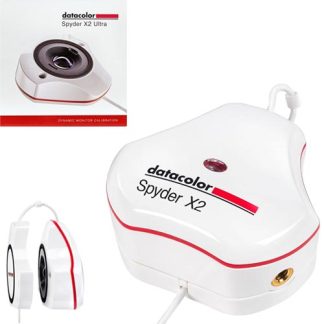
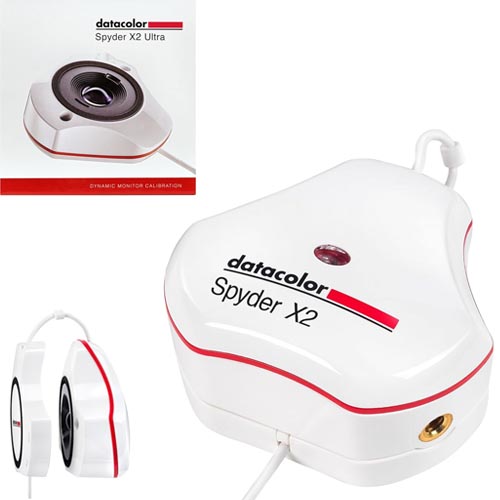
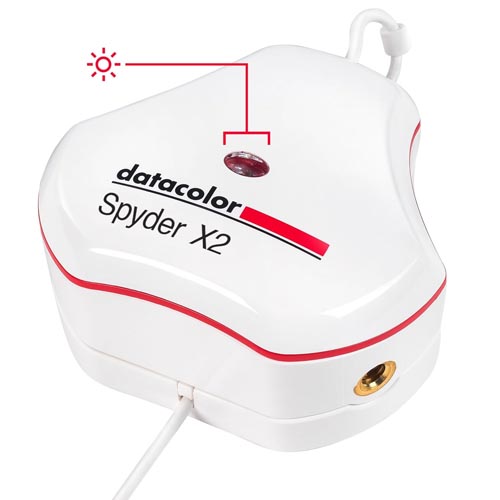
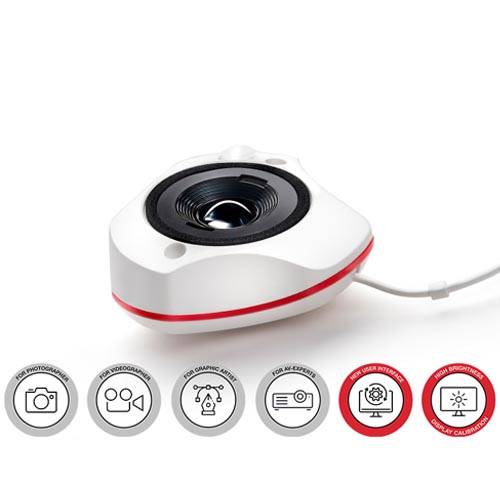
Color calibration tool for display monitors.
Perfect for photographers, videographers, digital designers, content creators and HDR content producers/consumers with HDR/high brightness monitors/advanced calibration needs who may run multiple displays on one or more computers. Ideal for tethered shooting; outdoor shoots where bright monitors attached to a computer are essential; location shooting (photo or video) landscape photography; outdoor portraiture; in studio; on location.
Features:
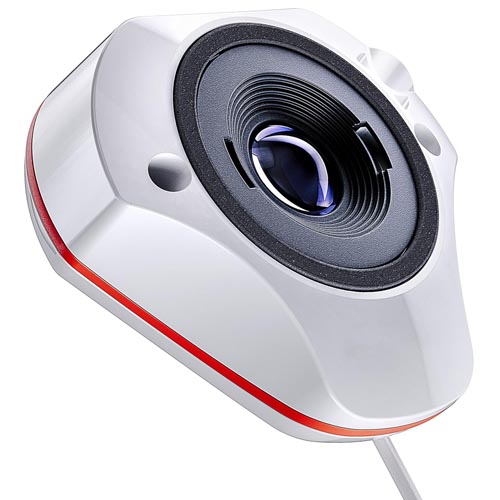
- 𝗚𝗥𝗘𝗔𝗧 𝗙𝗢𝗥 𝗠𝗢𝗦𝗧 𝗛𝗜𝗚𝗛-𝗕𝗥𝗜𝗚𝗛𝗧𝗡𝗘𝗦𝗦 𝗠𝗢𝗡𝗜𝗧𝗢𝗥𝗦: Lens-based, expanded X2 sensor capabilities allows for enhanced color/brightness range calibration in today’s HDR/high-brightness monitor market, up to 2000 nits or cd/m2. Ideal for tethered shoots, multiple displays on one or more computers.
- 𝗘𝗫𝗣𝗔𝗡𝗗𝗘𝗗 𝗦𝗘𝗡𝗦𝗢𝗥: Ensures precision calibration for today’s high-brightness monitors and for future technical advances in HDR/high-brightness monitor development.
- 𝗔𝗗𝗩𝗔𝗡𝗖𝗘𝗗 𝗖𝗔𝗟𝗜𝗕𝗥𝗔𝗧𝗜𝗢𝗡 𝗢𝗣𝗧𝗜𝗢𝗡𝗦: Ultimate color control capabilities (High Brightness Workflow; Video & Cinema Targets (Rec. 709, Rec.2020); Advanced Display Mapping & Analysis; Unlimited Calibration Settings; Soft Proofing; Studio Match for multiple monitor calibration.
- 𝗜𝗗𝗘𝗔𝗟 𝗙𝗢𝗥 𝗣𝗛𝗢𝗧𝗢 & 𝗩𝗜𝗗𝗘𝗢: Versatile for photo/video and hybrid work, as well as digital design, content creation and HDR content production and consumers with high brightness monitor/advanced calibration needs.
- 𝗦𝗧𝗥E𝗔𝗠𝗟𝗜𝗡𝗘𝗗 𝗨𝗜: Remastered software for more concise user interface (UI) experience.
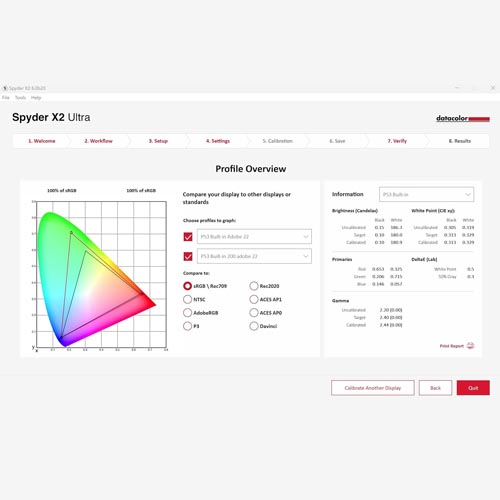
- Advanced Display Mapping & Analysis: Get a better understanding of the color, brightness, contrast, gamut, tone response and white point of your monitors. You can also check screen brightness, color uniformity, and display color accuracy.
- Side-by-side Multiple Computer/Display Calibration: Studio Match provides simultaneous side-by-side calibration for multiple computers/displays. Ensures consistent and accurate color reproduction across multiple connected monitors with most monitor types.
- Video and Cinema Targets: Experience a more concise user interface (UI) experience.
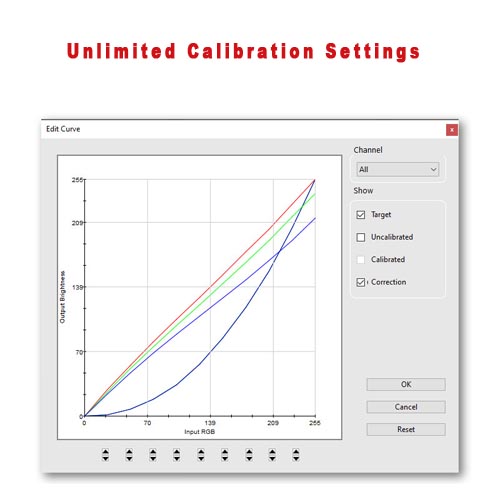
Includes video calibration targets Rec. 709 and Rec. 2020. - Unlimited Calibration Settings: Starting with industry-standard presets, you can customize settings to meet all your calibration needs, including fully customizable gamma curves, white point, and brightness settings.
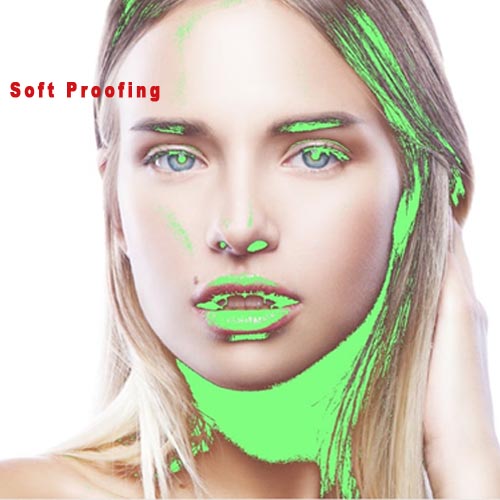
- Soft Proofing: Allows you to simulate other displays and devices on your calibrated screen. For printers, you can see how prints will look for a specific printer model, paper and ink, and upload ICC printer profiles.
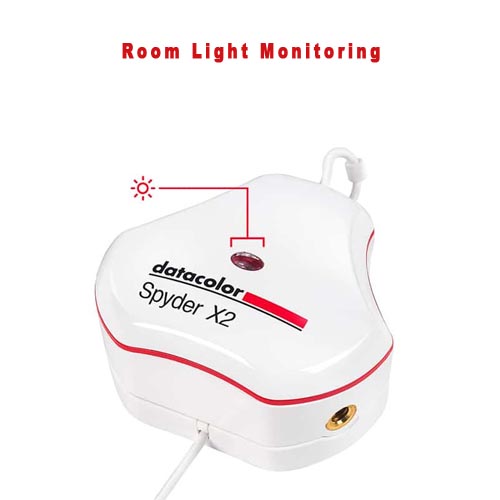
- Room Light Monitoring: An integrated ambient light sensor measures your room light throughout the day allowing you to adjust your display brightness and contrast to ideal levels. The software can either warn you to recalibrate or do it automatically using custom profiles based on light level.
How to Determine Your Monitor’s cd/m2 or NITs:
- The brightness capability of your monitor screen (expressed as cd/m2 or NITs) can usually be found on its packaging box or the manufacturer’s website. The following link may also be helpful. Display Specifications Link
How it works
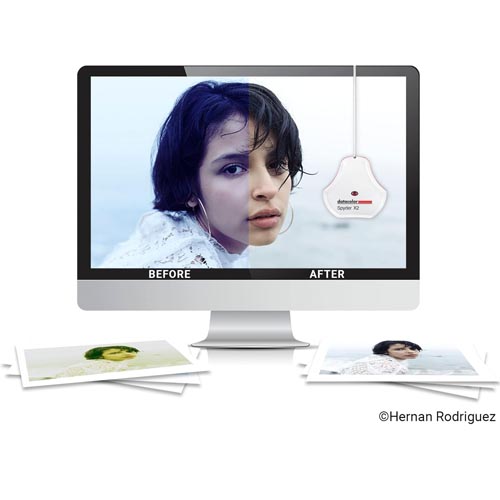
- Display calibration optimizes your monitor’s color performance and accuracy for your workflow (photography, videography, etc.). This quick and easy process measures, evaluates and corrects your monitor display for an accurate view into your digital world.
- Spyder monitor calibrators create an ICC display profile that is used by the video card and color managed software in your computer’s operating system. A calibrated display enables your computer to show a true color representation of your image file within your editing software so you can make accurate editing decision to create the look you want.
Step One: Download, install and launch the Spyder software. You’ll be prompted to answer a few questions about your display and workflow which will be saved for future calibrations. You may also find this link (DisplaySpecifications – Specifications and features of desktop monitors and TVs.helpful) Prior to calibration, turn off HDR/high-brightness setting.
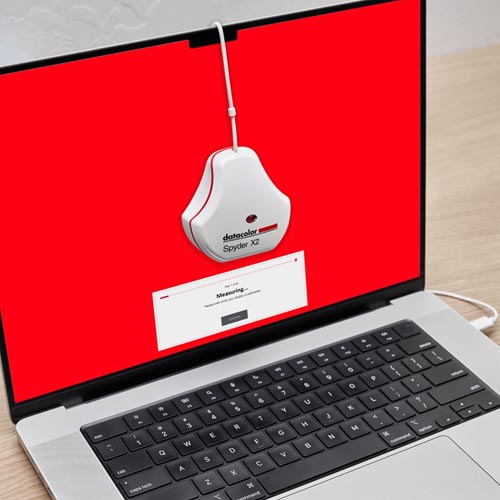
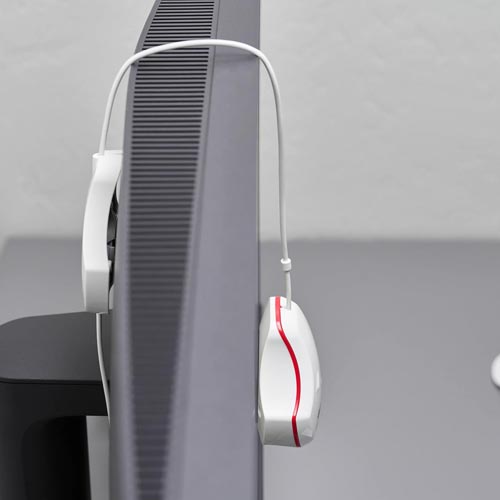
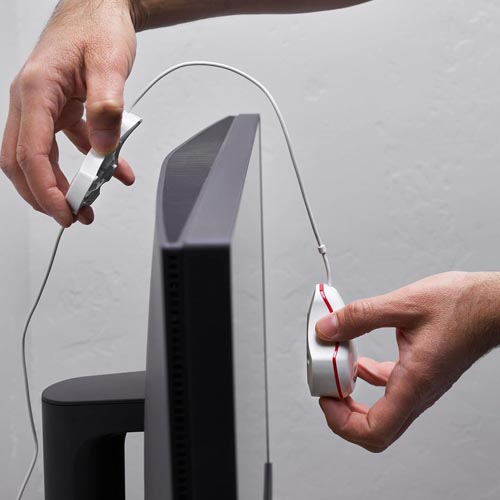
Step Two: Place the Spyder device on your display within the outline and let the Spyder software go to work. It will take a series of measurements to build the ICC profile and help you adjust your display’s brightness.
Step Three: When the measurements are completed, remove the sensor from your display and save the profile which remains housed in your computer to be used for this monitor moving forward. You can always simply delete the profile to return to your monitor’s factory default settings.
Technical Information:
- Brand: Datacolor | Manufacturer: Datacolor
- Model name: Spyder X2 Ultra
- Model : SXU200
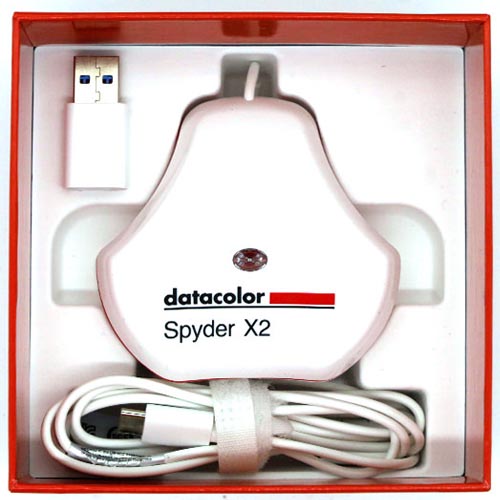
- Mounting Hardware: Spyder X2 colorimeter | USB-C to USB-A Adapter | Welcome card with link to software download and warranty information | Unique serial number to activate software | Link to on-line demonstrations, user guide, videos and support
- Mounting type: Tabletop
- Compatible devices: Desktop
- SUPPORTED DISPLAY TECHNOLOGIES: **(Note) Supports most modern display types.
- SYSTEM REQUIREMENTS: Windows 10 32/64, Windows 11 , Mac OS X 10.14, 10.15, 11 (Big Sur), 12 (Monterey), 13 (Ventura), Monitor resolution 1280×768 or greater, 16-bit video card (24-bit recommended), 1GB of available RAM, 500MB of available hard disk, Internet connection for software download
- SUPPORTED LANGUAGES: English, French, Italian, German, Spanish, Russian, Japanese, Simplified Chinese, Traditional Chinese, Korean
- Product Dimensions: 7.62 x 7.62 x 4.45 cm; 141.75 g
WHAT’S IN THE BOX:
Spyder X2 colorimeter
USB-C to USB-A Adapter
Welcome card with link to software download and warranty information
Unique serial number to activate software
Link to on-line demonstrations, user guide, videos and support
** Note: As OLED has become more widely available, so too are the different types of OLED display technology. While it may be possible to use the Spyder X/X2 to calibrate certain types of OLED displays, we cannot guarantee the accuracy of the resulting calibration. Currently, we do not recommend using a Spyder X/X2 to calibrate any type of OLED display for color-critical applications.